Building OS case study preview
FILE
EVOLVE_NORTH.CS
FILE TYPE
CASE STUDY
DISCIPLINE
ART DIRECTION / BRAND IDENTITY
ROLE
ART DIRECTOR / DESIGNER
YEAR
2020
READING FILE
This is some text inside of a div block.
MEDIA
This is some text inside of a div block.
PREPARING FILE
This is some text inside of a div block.
PROGRESS
This is some text inside of a div block.

B.A.S. Interface rebuilt

Building OS

Context

Connecting equipment
data and people.

A Building Automation System (BAS) connects and controls systems such as HVAC, lighting, and security. On-site JACE controllers bring equipment from different manufacturers into Niagara, a shared software environment. Continual’s web interface translates that live data into a browser-based workspace where building teams can monitor operations, respond to issues, adjust controls, and manage schedules.

Equipment
Equipment. HVAC units, lighting, meters, sensors and security devices continuously generate operational data and respond to control commands.
JACE controller
JACE controller. Connects equipment from different manufacturers and communication protocols, bringing their data into a shared Niagara environment.
Niagara network
Niagara network. Structures equipment, points, schedules and control logic across the project, creating the operational foundation behind the interface.
Web interface
Web interface. Browser-based interface translates live Niagara data into navigation, graphics, controls, alarms, trends and schedules.

What began as a new interface for one client became an opportunity to rethink how Continual’s BAS products could work across every project. I led the building-based navigation model, interface design and interaction system, then implemented much of the experience in ECLYPSE Designer using live Niagara data.

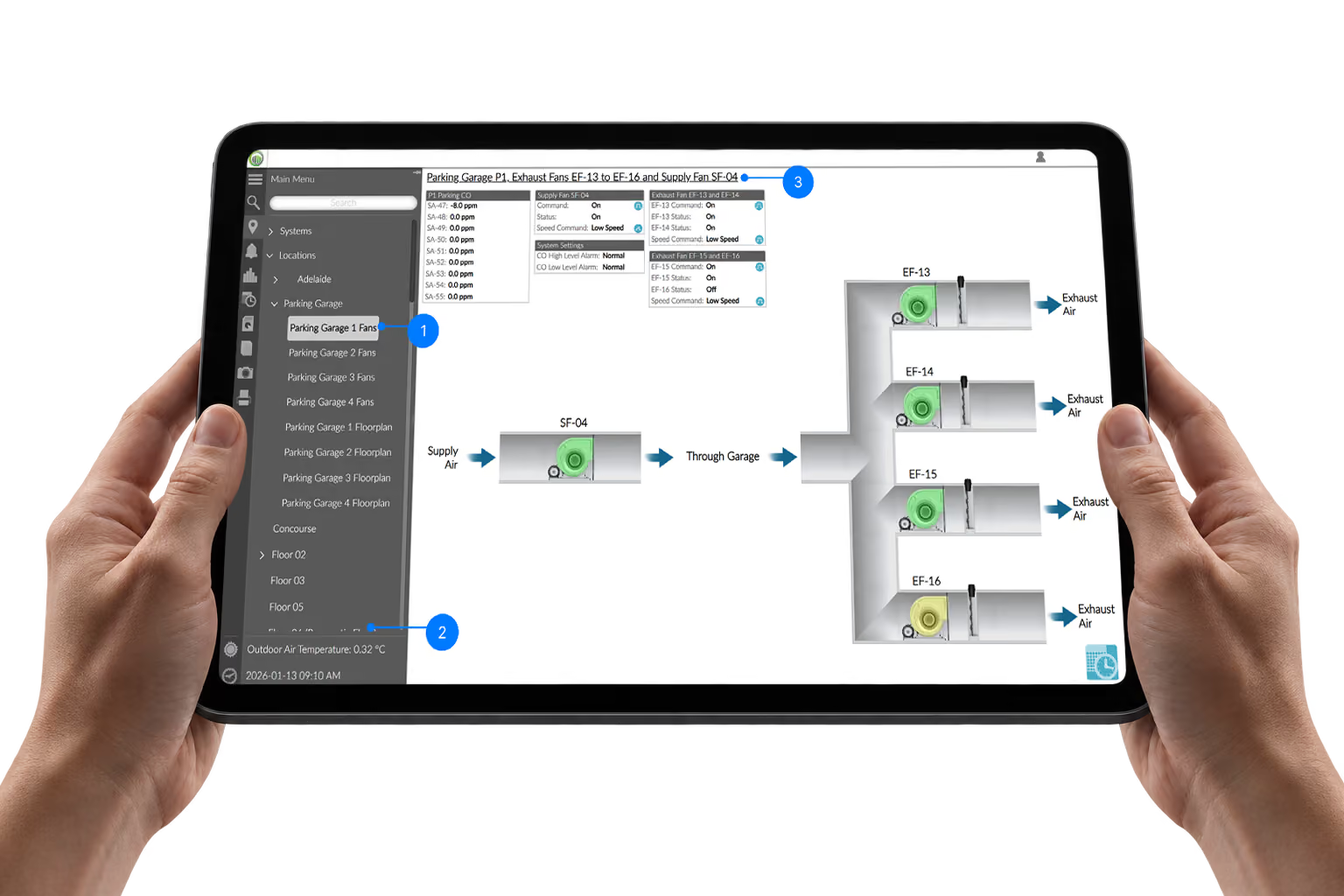
Existing

Inherited System.

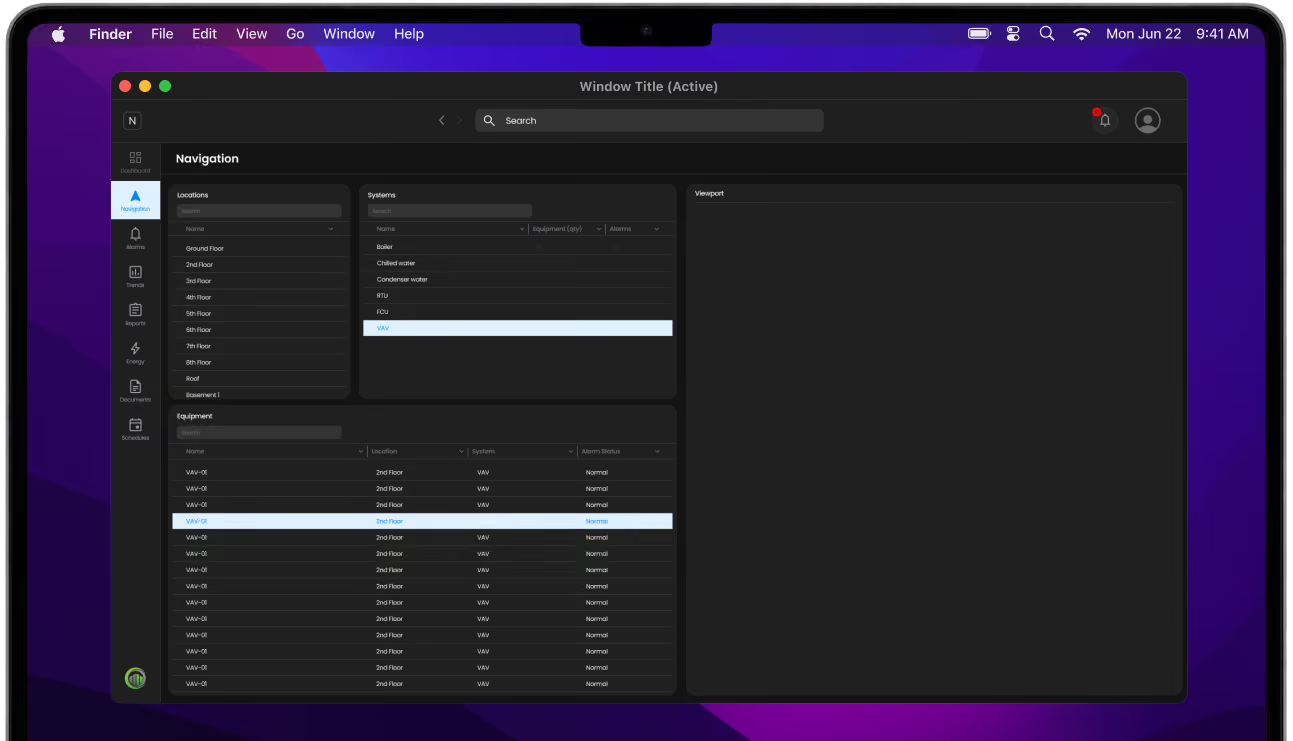
Previous interfaces reflected how each Niagara station was configured, not how operators understood and used the building. Because every station was organized differently, navigation and page structure changed from one project to another. Operators could reach the data and controls they needed, but only after learning how each system had been assembled.

01

Mixed organizing models

Locations, building systems, equipment groups and page types appeared within the same expanding navigation structure.

02

Navigation required memory

Finding equipment meant scanning long lists, opening multiple branches and remembering where individual pages had been placed.

03

Inconsistent across projects

Navigation labels, page layouts and location controls varied according to how each project had been configured.

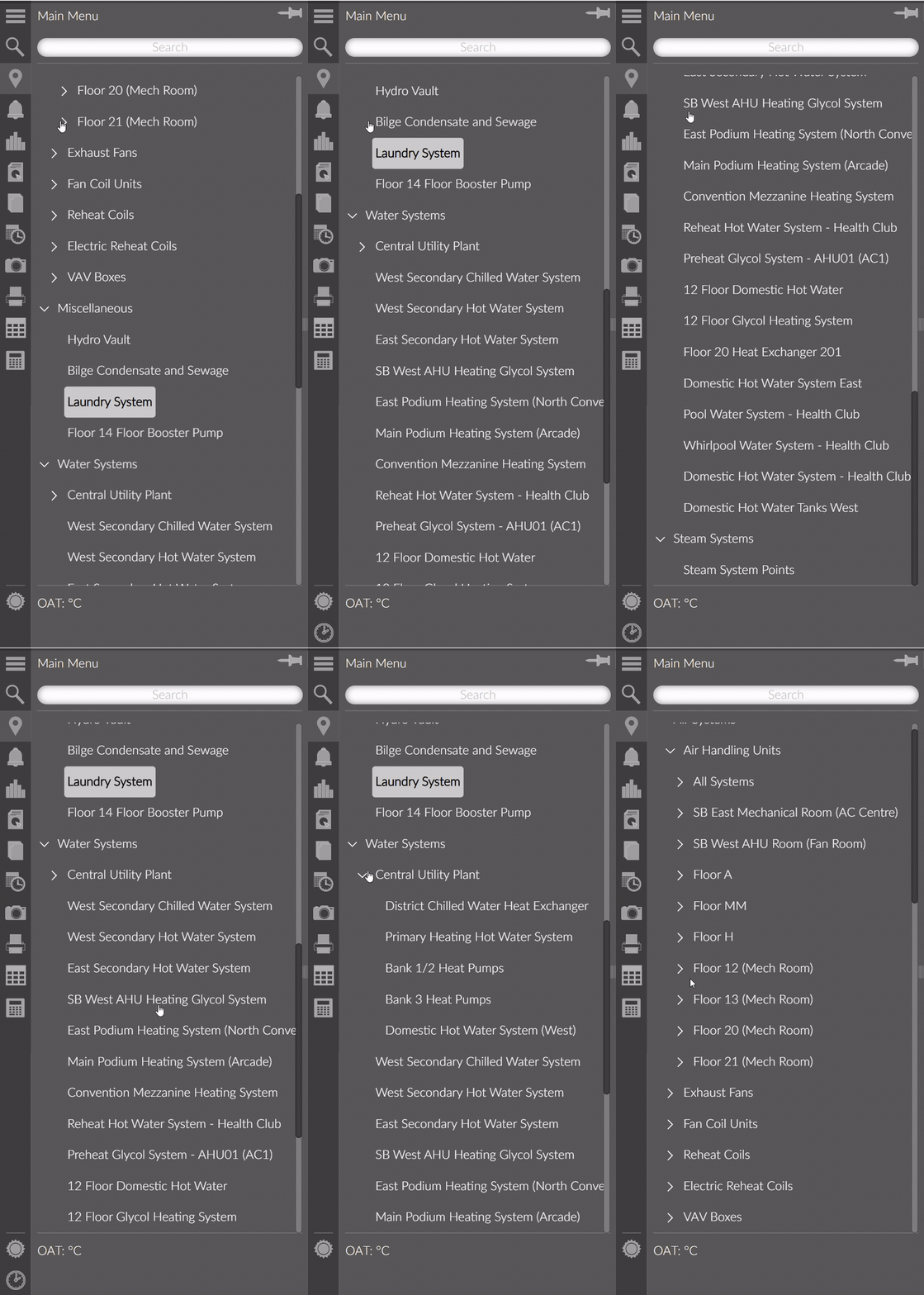
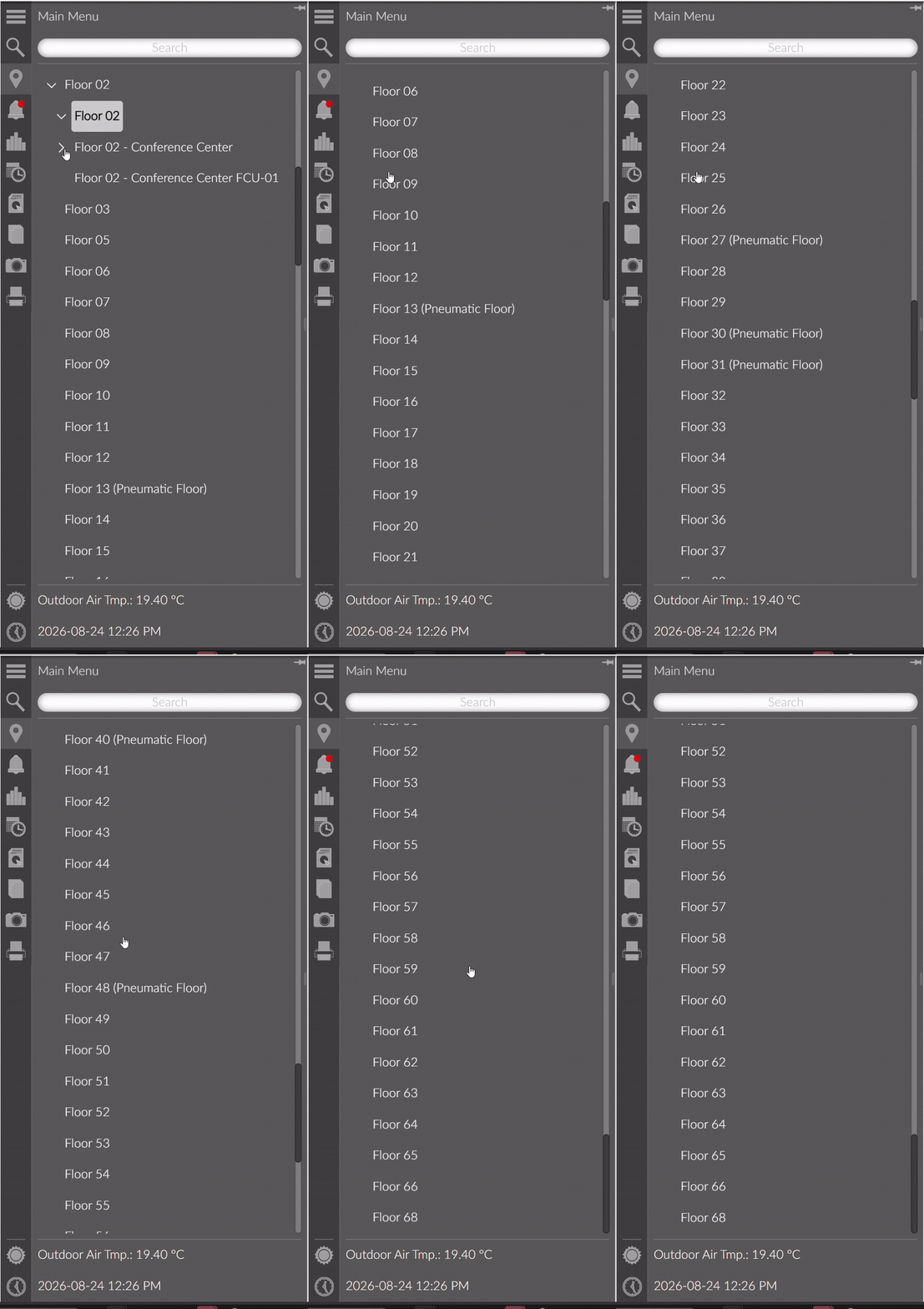
Different project structures forced users to relearn navigation.

Project A navigation tree showing the original station structure

Mixed structure

Systems, equipment types, locations and utility pages shared one tree.

Project B navigation tree showing a different station structure

Floor-based structure

Equipment was organized beneath a long list of building floors.

Organizing idea

Building became the navigation model.

I replaced the project-specific navigation tree with a consistent spatial hierarchy based on how operators locate equipment in the real world. The same model could be applied across projects regardless of how the underlying Niagara station was configured.

01

CAMPUS

Start at the Campus level to understand context.

02

BUILDING

Drill into each building for a systems overview.

03

FLOORS

04

SYSTEMS

Move laterally between systems without losing context.

05

EQUIPMENT

Access equipment details without losing your place.

Design. Refine. Repeat.

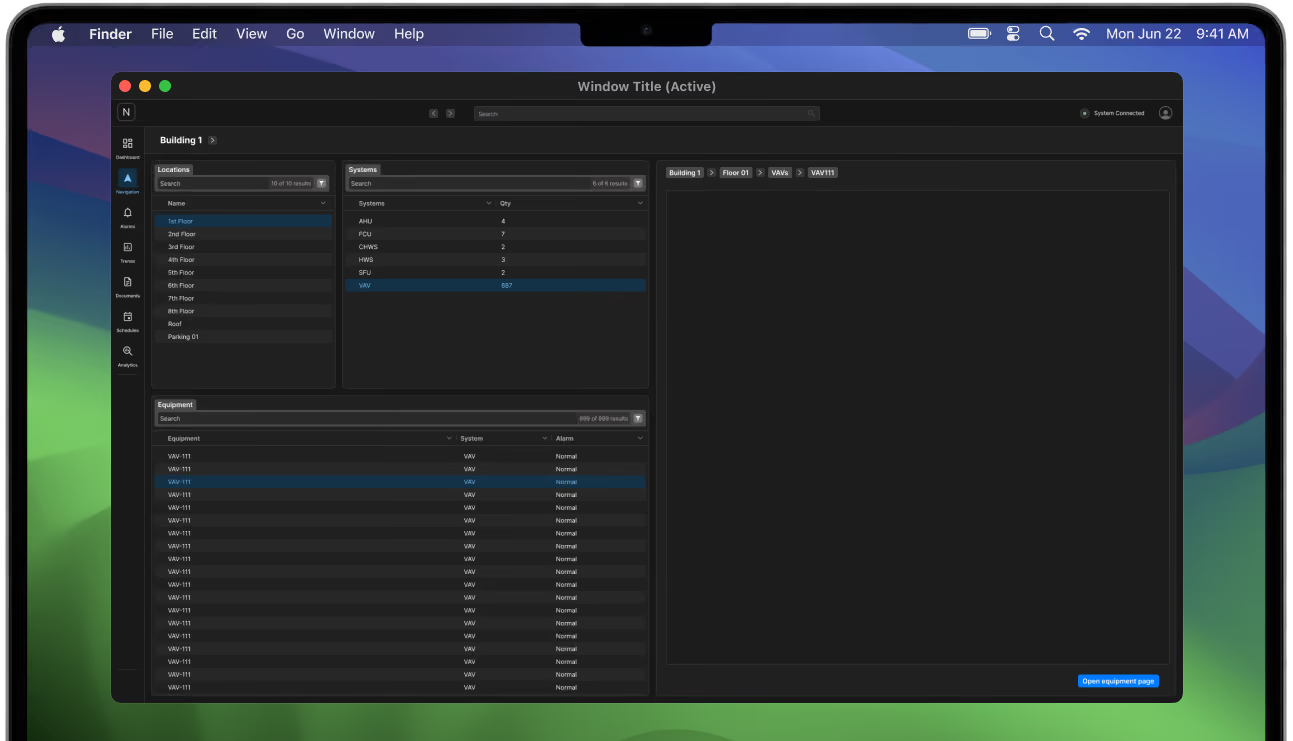
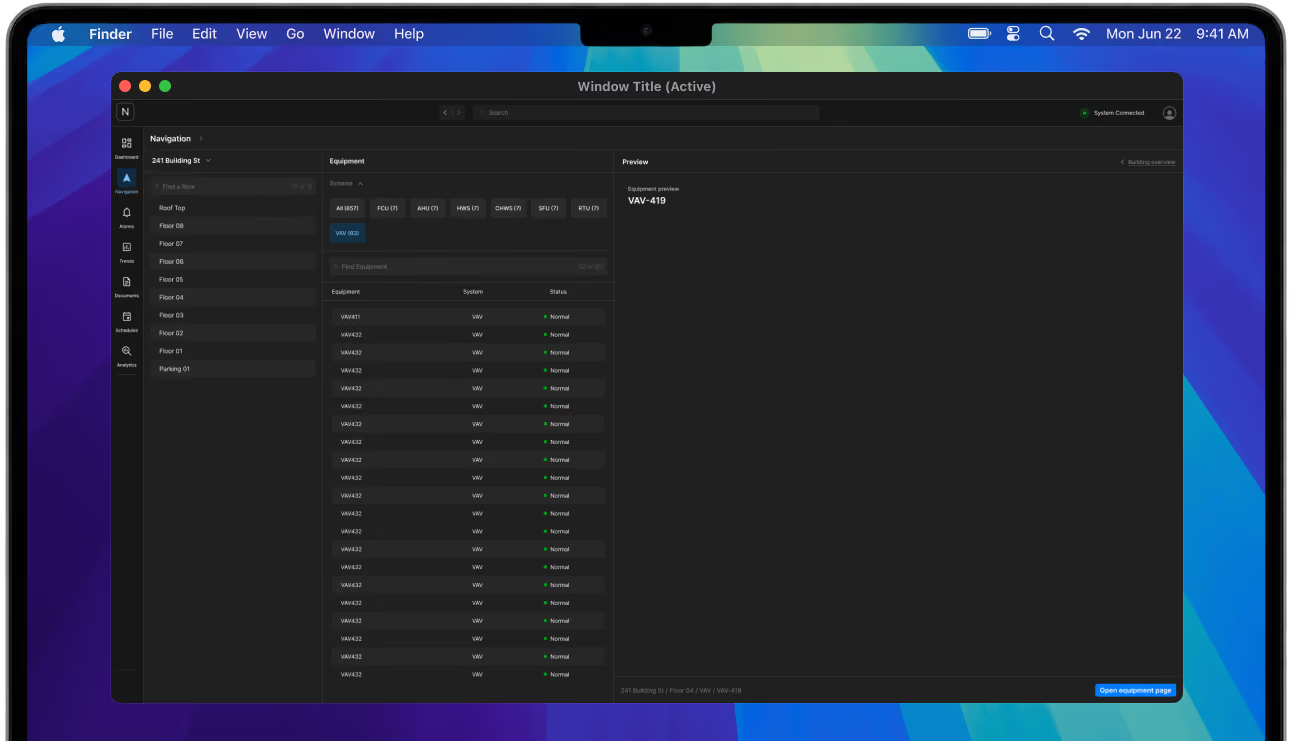
Developed in collaboration with Continual’s engineering and building-operations teams, the interface evolved through weekly reviews with operators and technicians. Across four iterations, each round reduced navigation complexity, strengthened spatial context and focused the experience around the operator’s active task.

Guided when needed.
Direct when known.

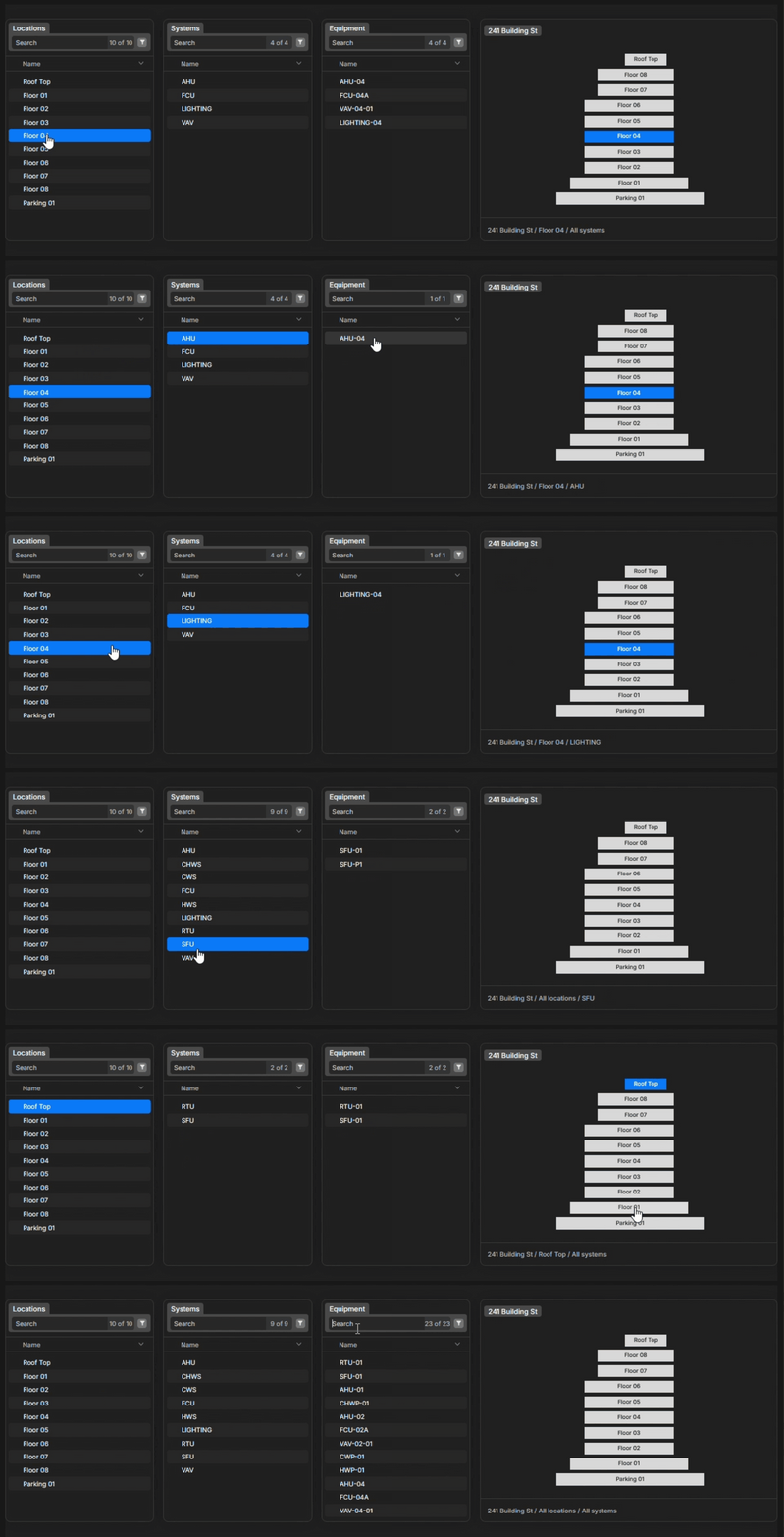
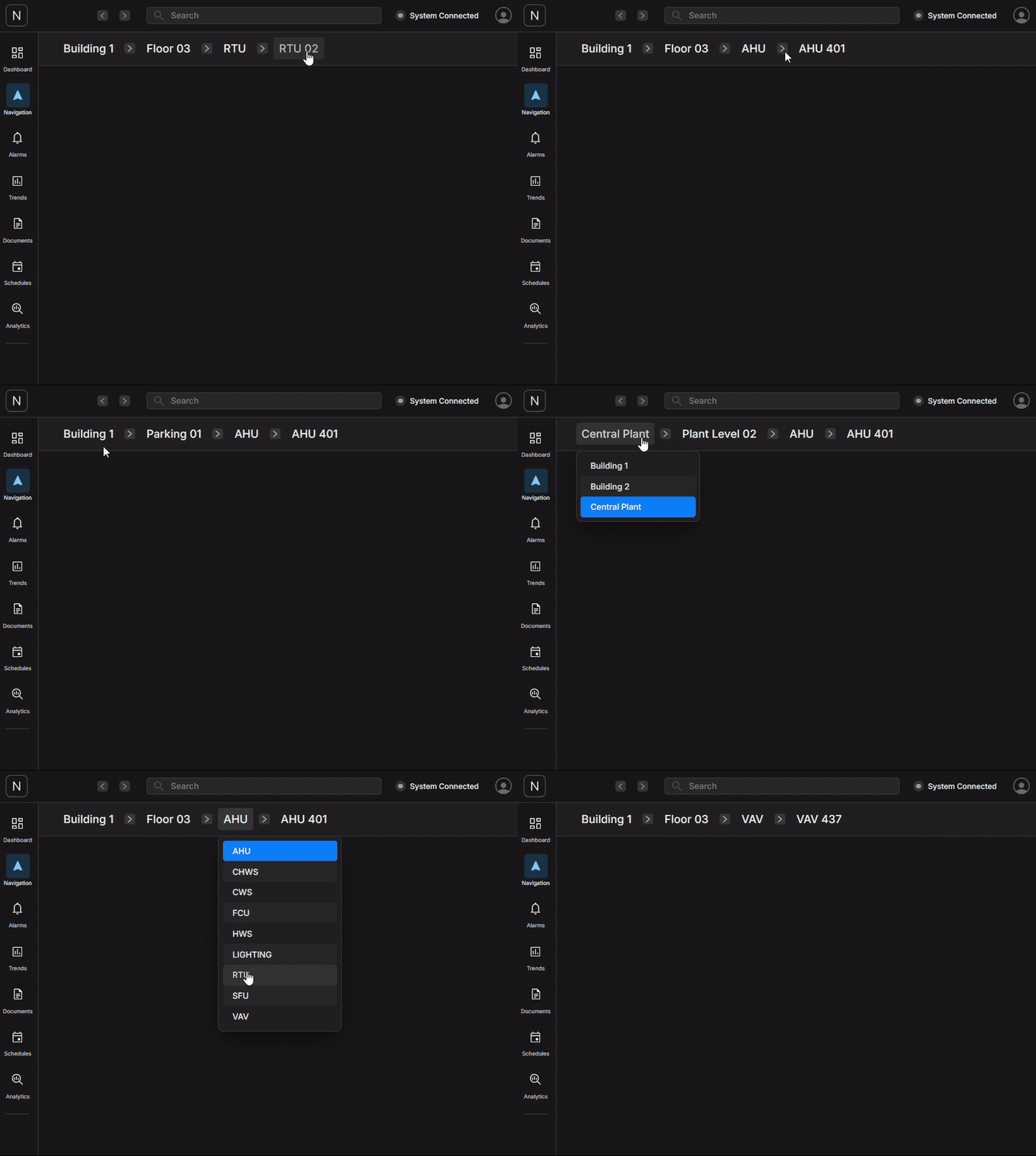
Users unfamiliar with a building can progressively narrow the interface by location, system and equipment. Experienced operators can select a known system or equipment entry directly without completing the full sequence.

Context stays
with the user.

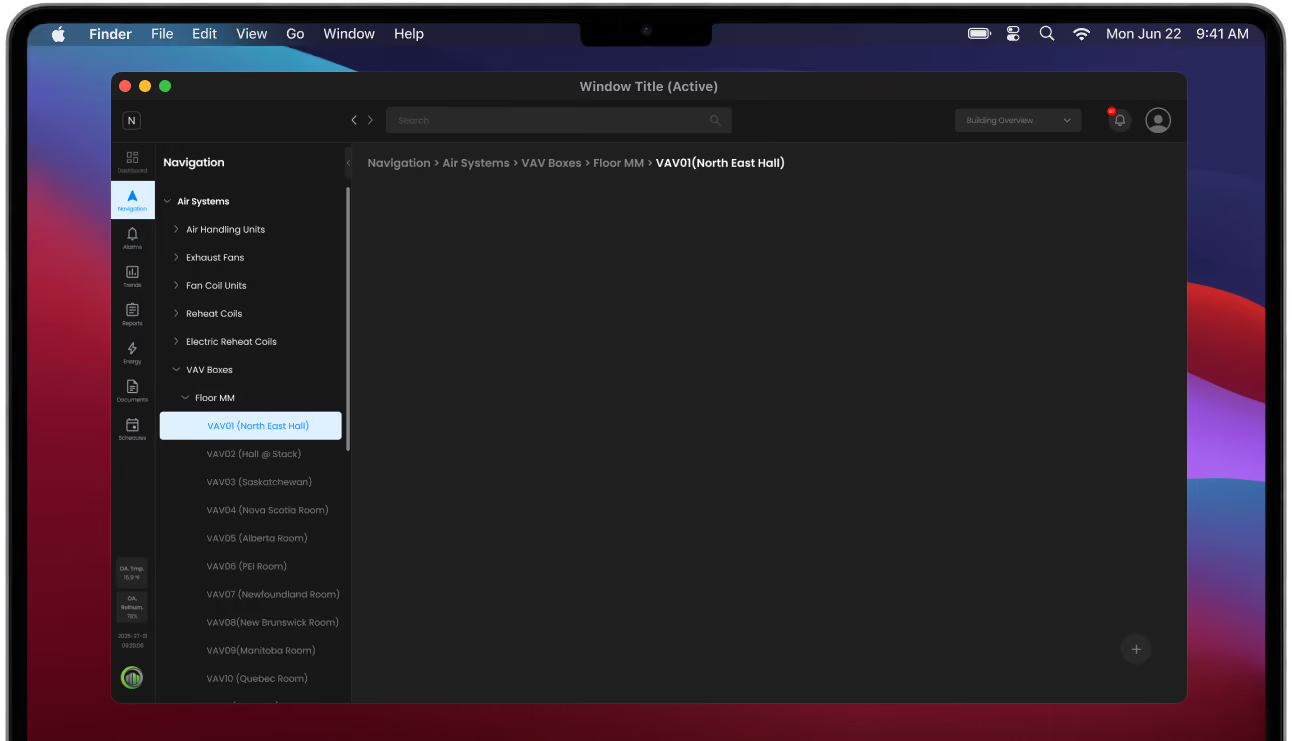
The navigation menu disappears after a destination is opened, but the building hierarchy remains visible through an interactive breadcrumb. Users can understand where they are and move laterally without returning to the beginning.

One workspace from monitoring to scheduling.

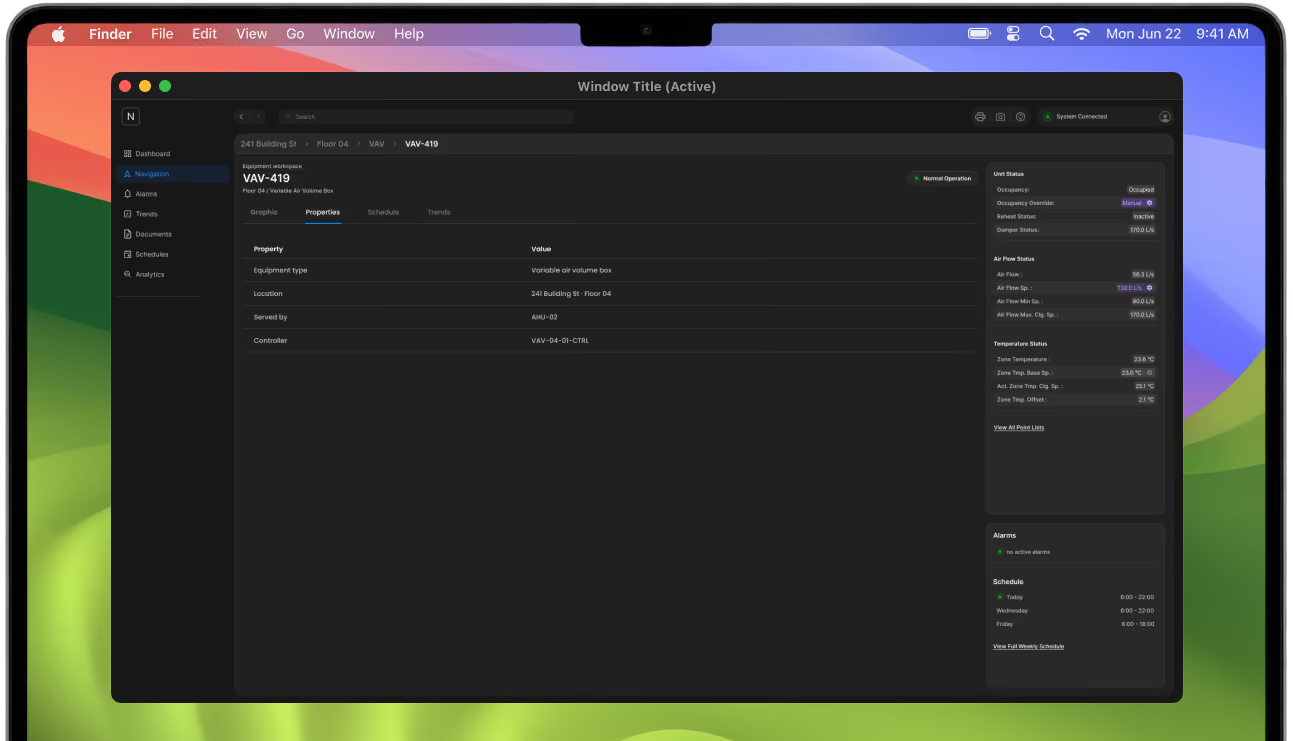
Selecting equipment opens a consistent workspace to review live status, understand behaviour, adjust controls, inspect trends and confirm schedules without losing location context. The same structure keeps actions predictable across equipment types.

Visual system.

Structure stays neutral

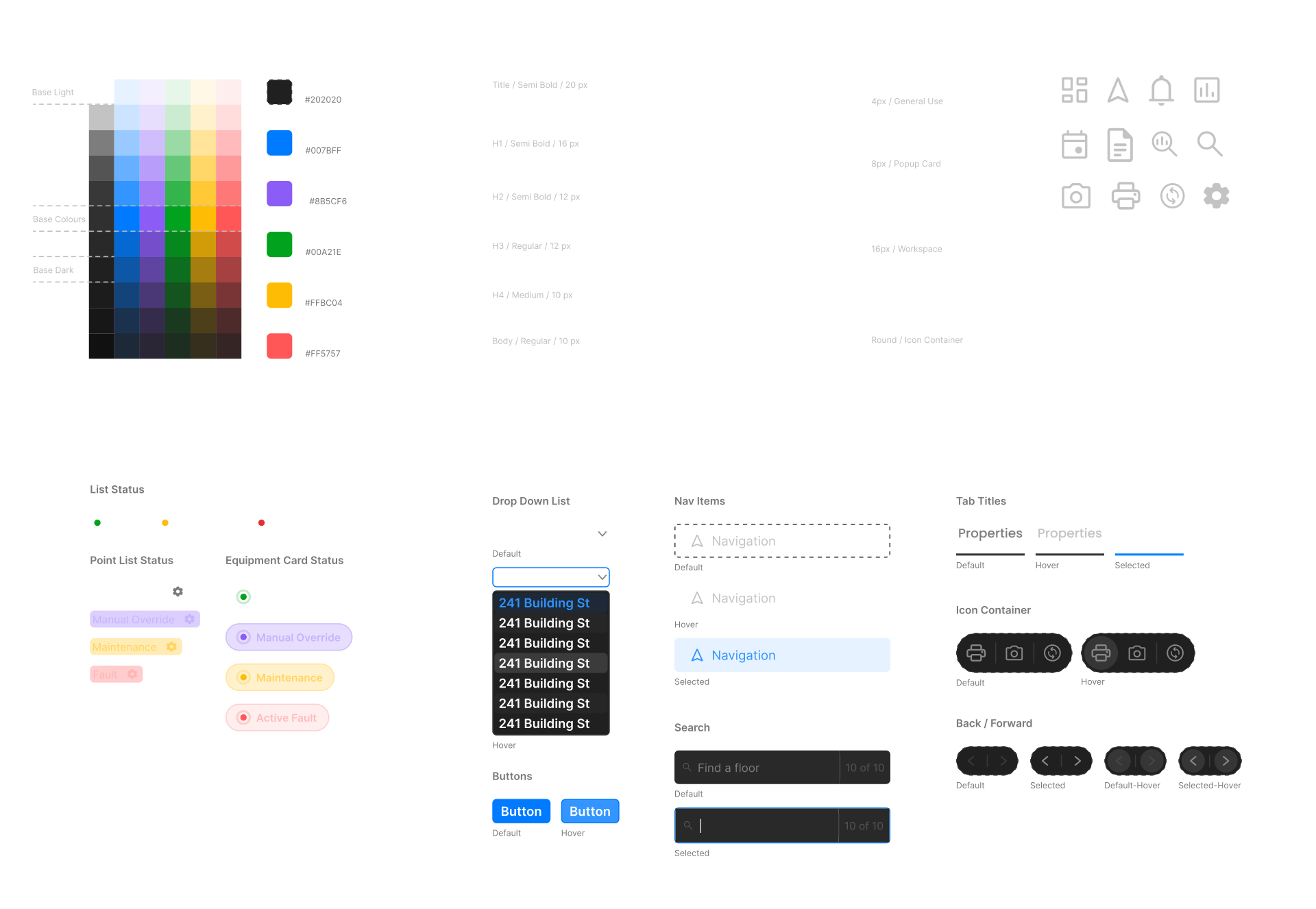
Dark surfaces, restrained radii and thin dividers organize dense information without turning every region into a separate card.

Colour carries meaning

Blue indicates navigation, selection and primary actions. Violet identifies manual overrides, while green, amber and red are reserved for operational conditions.

Patterns remain consistent

Typography, icons and interaction states repeat across navigation, equipment, trends and scheduling, reducing the amount operators need to relearn.

Implementation.

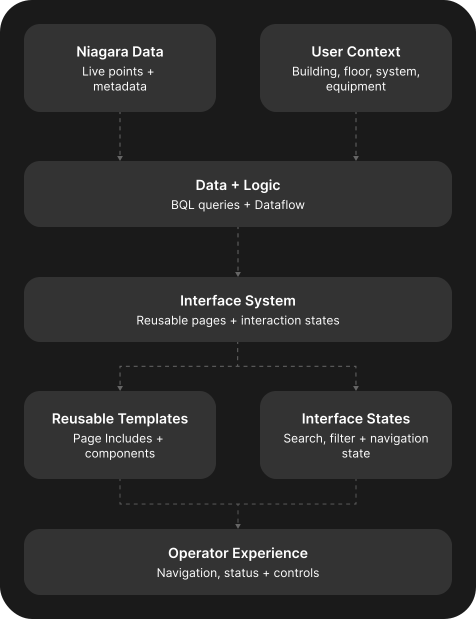
Built in DGLUX5/ECLYPSE Designer, the interface uses BQL and Dataflow to connect Niagara data with search, filtering and navigation. Reusable Page Includes and equipment templates keep the experience consistent across equipment types and projects, while breadcrumbs preserve the operator’s building, floor, system and equipment context.

Building OS implementation diagram
Niagara Data
Niagara provides the live operational data behind the interface, including equipment status, temperatures, setpoints, alarms and schedules. Metadata identifies what each point represents and where it belongs within the building.
User Context
Each selection establishes the operator’s current context. That context determines which equipment, data and controls should appear while preserving their location within the broader building
Data + Logic
BQL queries retrieve the relevant Niagara points, while dataflows organize, filter and prepare the results for the interface. This layer translates raw station data into information the interface can consistently display.
Interface System
A shared interface system connects the processed data to reusable page structures and predictable interaction patterns. The same foundation can support different buildings and equipment types without rebuilding every screen.
Page includes + components
Shared page includes and components define the structure of navigation, equipment pages, status panels and controls. Updates can be made once and carried across the interface instead of being recreated for every system.
Interaction States
Interaction states manage what operators see as they search, filter and move through the building. Breadcrumbs and selected states preserve context, helping users understand where they are and how they arrived there.
Operator Experience
The final interface brings navigation, live status and equipment controls into one consistent workspace. Operators can move between buildings and systems without relearning how each Niagara station was assembled.

From one project to a shared system.

What began as a project-specific interface became a shared product system that can adapt across buildings while maintaining a consistent operator experience.

View the next project

Evolve North

END OF FILE
NEXT
EVOLVE_NORTH.CS
OPEN FILE →